
Connect your LinkedIn account
Goal: connect the LinkedIn account you use for business, so the app can collect your data and run your automations. About two minutes, on a computer.
New to the app? The tutorial, unit 2 walks through the same steps with more explanation.
-
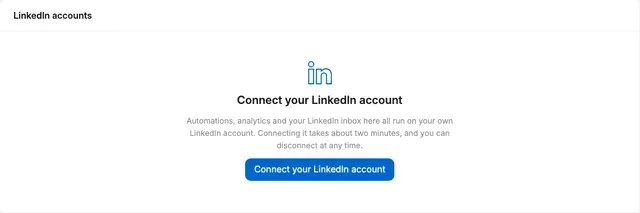
In the menu open Settings → LinkedIn accounts and click Connect your LinkedIn account (or Connect an account if one is already there). New accounts see the same window in the setup card.
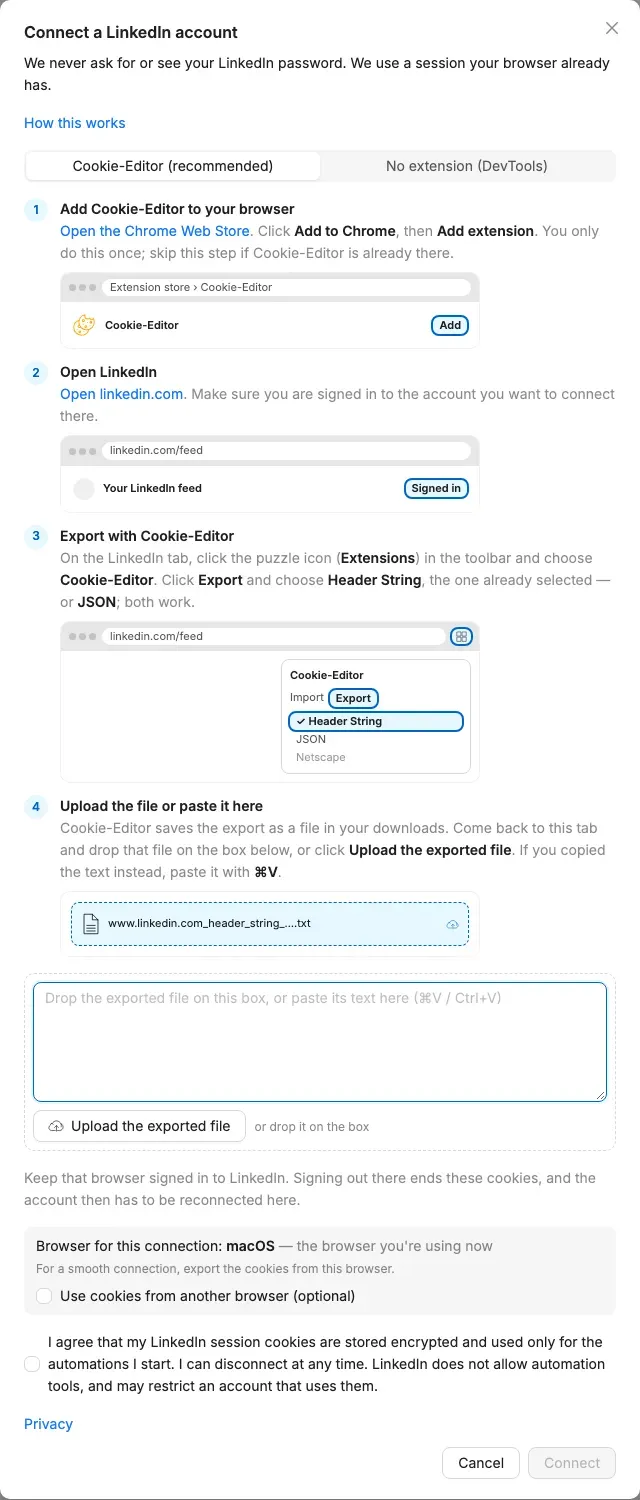
The window that opens walks you through steps 2–5. It also says that we never ask for or see your LinkedIn password; How this works opens How connecting your LinkedIn account works.
-
With Cookie-Editor (recommended) selected, add the extension using the link for your browser (Add to Chrome, Get in Edge, Add to Firefox, or the App Store for Safari). Skip this if you have it.
-
Open linkedin.com, signed in to the account you want to connect. Click the puzzle icon (Extensions) → Cookie-Editor → Export → Header String (or JSON).
-
Back in the app, drop the saved file on the box or click Upload the exported file.
-
Tick the agreement and click Connect. After about a minute the status changes from Checking… to Active.
-
In Is this you? click Yes, that’s me, or No, disconnect it if the profile is not the one you meant.
Other ways
Section titled “Other ways”- No extension: choose No extension (DevTools). Open LinkedIn, press the shortcut shown (or right-click → Inspect), open the Network tab, reload, click the first request to www.linkedin.com and copy the whole value of cookie under Request Headers. Paste it in the box.
- Exported in another browser: tick Use cookies from another browser (optional) and paste that browser’s User-Agent where the window asks for it. The window shows where to find it.
Common pitfalls
Section titled “Common pitfalls”- Netscape format: export again as Header String or JSON.
- Logging out of LinkedIn in the browser you exported from ends the session; the account then shows Needs reconnect. See Reconnect an account.
- A phone: the window says This is easier on a computer. The steps need a desktop browser.
- Any other message: Fix an error while connecting.