
Connect Claude or ChatGPT to your CRM
Goal: let your own AI assistant read your CRM and, with your approval, do things in it: find people, tag them, draft and schedule posts, check campaign results.
Available in Pro and Business. On Basic, Integrations (MCP) shows Available in Pro instead of the Connect via MCP card.
Before you start
Section titled “Before you start”-
In the app, open Settings → Integrations (MCP). The Connect via MCP card shows the MCP server address:
https://db.b2bmarketing.ai/functions/v1/mcp-gateway -
You sign in with your B2B Marketing.AI account. No password or key goes into the AI tool: when it connects, our consent page Authorize access opens and you click Approve.
Add the connector in claude.ai in your browser: the Add button described below is there. You do not need to add it again in the Claude desktop app, because the connector is saved to your Claude account and works there too.
-
Open claude.ai in your browser. In the left sidebar click Plugins, then Your plugins.
-
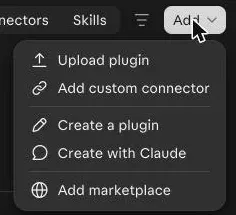
Click Add (top right) → Add custom connector.
-
Fill in Name (any, for example
CRM LinkedIn) and MCP server URL (the address above), then click Continue.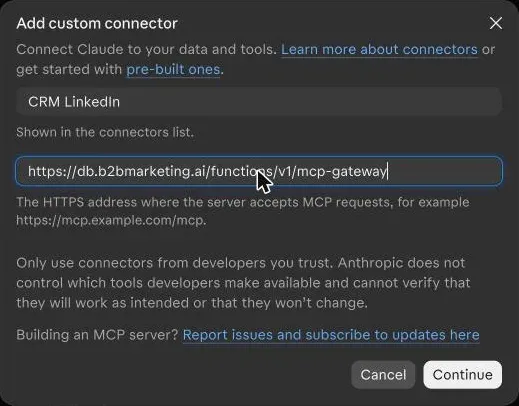
-
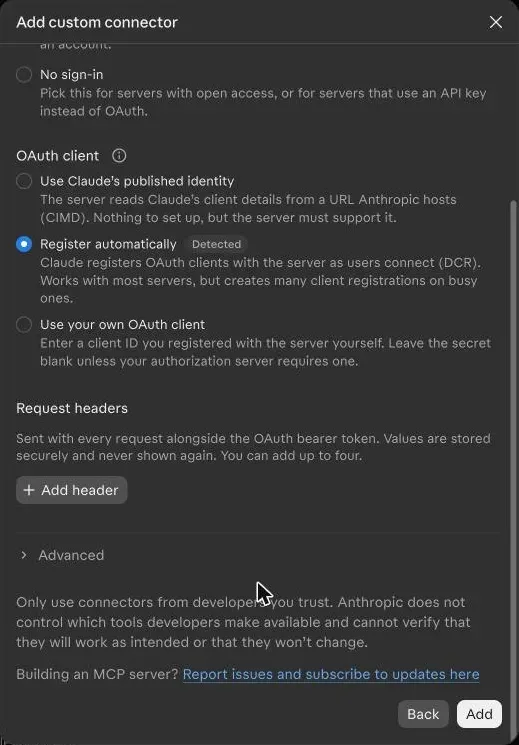
Claude checks the server and fills in the next step itself: Authentication is Sign in now and OAuth client is Register automatically, both marked Detected. Leave them as they are, add no request headers, and click Add.
-
Our consent page Authorize access opens. Sign in with your B2B Marketing.AI account if asked and click Approve.
-
Back in Claude you see Connected to CRM LinkedIn. Start a new chat and ask: “Who am I in the CRM?”
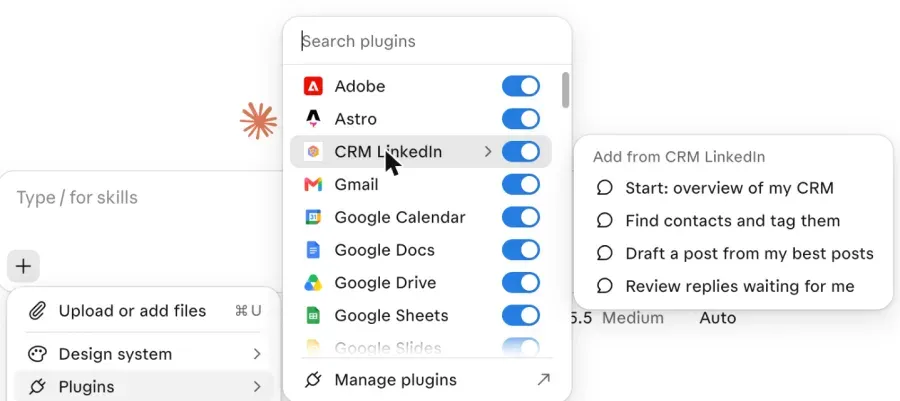
For a guided first session, use the connector’s ready-made prompt Start: overview of my CRM. It shows what you can do with your CRM and changes nothing. In a new chat click + → Plugins, point at CRM LinkedIn (the name you gave the connector) and pick the prompt under Add from CRM LinkedIn. Typing the prompt’s name as a message does not run it. If the connector has no arrow there, refresh it or connect it again.
You need ChatGPT on the web (chatgpt.com) with a Business, Enterprise or Edu plan. On a Business workspace only an admin or owner can add the server; see Common pitfalls below.
-
In the left sidebar open Plugins.
-
Click Add (top right) → Add custom MCP server. You do not need Developer mode.
-
Fill in Name (for example
CRM LinkedIn), optionally a Description, and under Connection → Server URL the address above. Leave Authentication on OAuth and do not change Advanced OAuth settings: ChatGPT picks the registration method itself. -
Tick I understand and want to continue and click Create as a plugin.
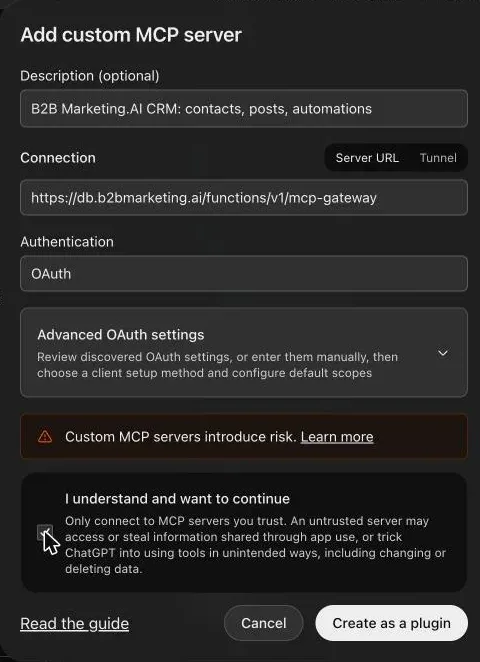
-
In the CRM LinkedIn window click Continue to CRM LinkedIn. Our consent page Authorize access opens: sign in if asked and click Approve. If you connected before, ChatGPT may skip this page and show Primary is now connected right away.
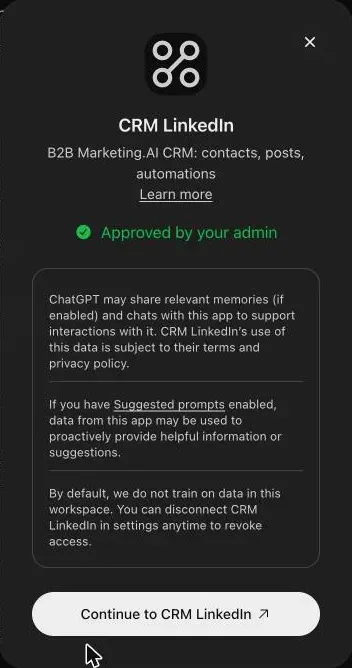
-
Start a new chat, type
@CRM LinkedInand ask: “Which of my automations are running?”
The assistant can use every CRM tool, and changes run only after you approve them. This also applies to
Deep research (+ → Deep research, then @CRM LinkedIn): it reads your CRM with the same tools as a
regular chat, for example your accounts, posts and post analytics, and links each cited post to LinkedIn.
ChatGPT does not show the connector’s ready-made prompts. For a guided first session, type @CRM LinkedIn and
ask: “Help me understand what I can do with my CRM. First explain what you can do, grouped by task: contacts and
network, campaigns and replies, posts and drafts, analytics. Then briefly show my LinkedIn accounts and how many
replies are waiting. End with 2–3 suggested next steps. Keep it read-only.”
Using Claude Code, Codex, Gemini CLI, Cursor or Windsurf? See Connect a developer tool.
Approve each change
Section titled “Approve each change”Every change also takes two steps on our side: the assistant first proposes it and shows you what will happen, and it runs only after you confirm.
Common pitfalls
Section titled “Common pitfalls”- Available in Pro: the connection needs a Pro or Business plan. Click Review plans and credits in the message, or open Settings → Billing.
- The consent page asks you to sign in: use your B2B Marketing.AI e-mail and password, not your LinkedIn login.
- A second “Claude” entry in Integrations (MCP) after reconnecting is normal. Revoke the one you no longer use: Disconnect an AI assistant.
- Claude says “A connector with this URL already exists”: the connector is already there, under Plugins → Your plugins. To connect it again from the start, open its ⋯ menu → Remove, then follow the steps above. Also revoke the old entry in Settings → Integrations (MCP).
- Claude does not let you add a custom connector: on a Claude Team or Enterprise plan, an Owner adds the connector for the whole organization first, in Organization settings → Connectors; members then click Connect next to it. On Claude’s Free plan you can have only one custom connector.
- ChatGPT does not let you add the server, or the assistant can only read: changes through the assistant need ChatGPT Business, Enterprise or Edu. On a Business workspace only admins and owners can add a custom MCP server; on Enterprise and Edu an admin has to give you that permission. On ChatGPT Pro a custom server can only search and read.
- The assistant says Rate limit exceeded or Write limit reached: you asked for more than the app allows per minute. Wait a minute and ask again; the limits are on What your AI assistant can do.